
Appearance
Auction Configuration
The Product Auction app provides a range of configuration options that allow you to customize auction settings, bidding behavior, storefront appearance, and email notifications.
The configuration is divided into the following sections:
- General Configuration
- Auction Configuration
- Widget Configuration
- Design Configuration
- Label Configuration
- Mail Configuration
- SMTP Configuration
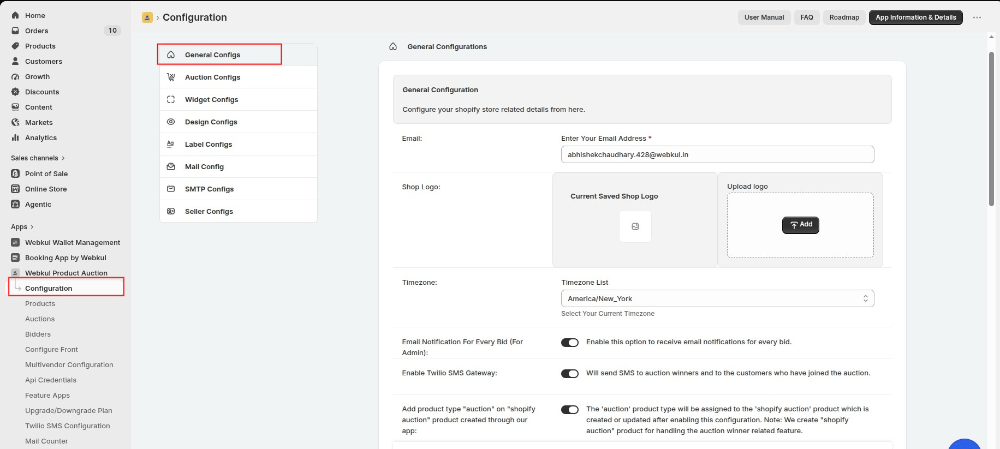
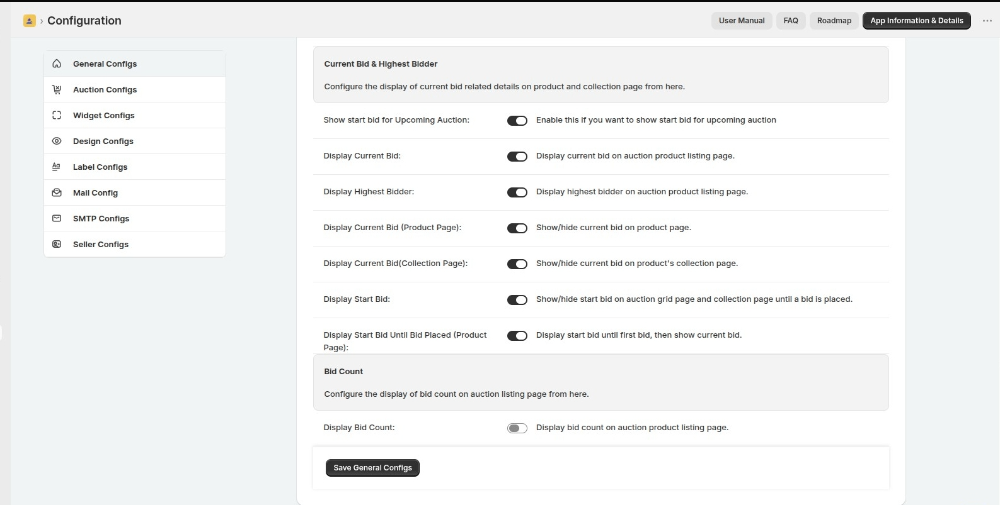
General Configuration
Enter your email and upload your shop logo in this section. The shop logo’s image dimension should be 197 x 52. Extensions Supported: jpg, jpeg, png, JPG, JPEG, PNG.
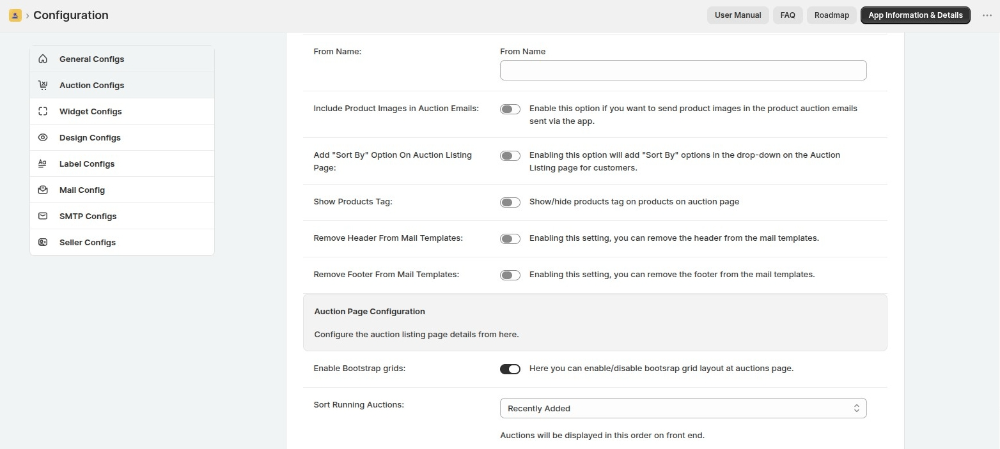
Auction Configuration
Configure the auction/bidding configurations like enable/disable start auction automatically, send automatic emails to the bidders to notify their loss.
Display purchase now option on auction widget: Display purchase now button on auction widget till current bid is less than buy now amount.
Note: Make sure that the joining fee and booking fee is disabled.
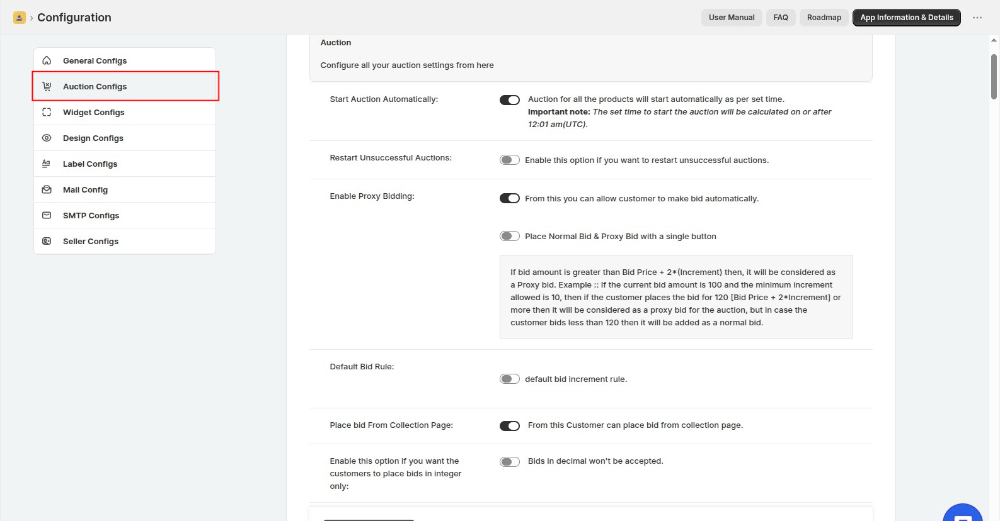
Place bid From Collection Page: From this Customer can place bid from collection page.
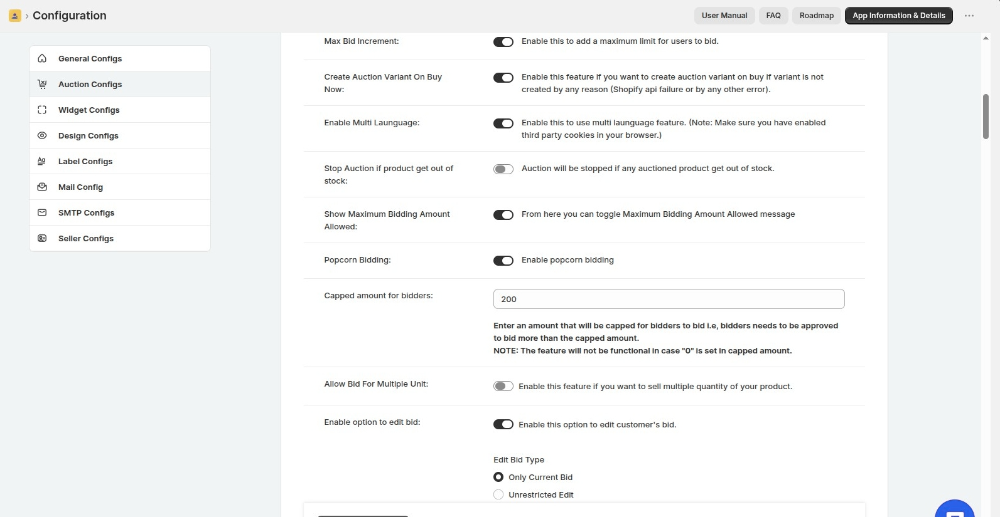
Stop Auction if Product Goes Out of Stock: Stop the auction when the auctioned product goes out of stock.
Capped Amount for Bidders: Set a maximum bidding amount. Require bidders to get approval before they can bid above the capped amount.
Note: The feature does not work when you set the capped amount to 0.
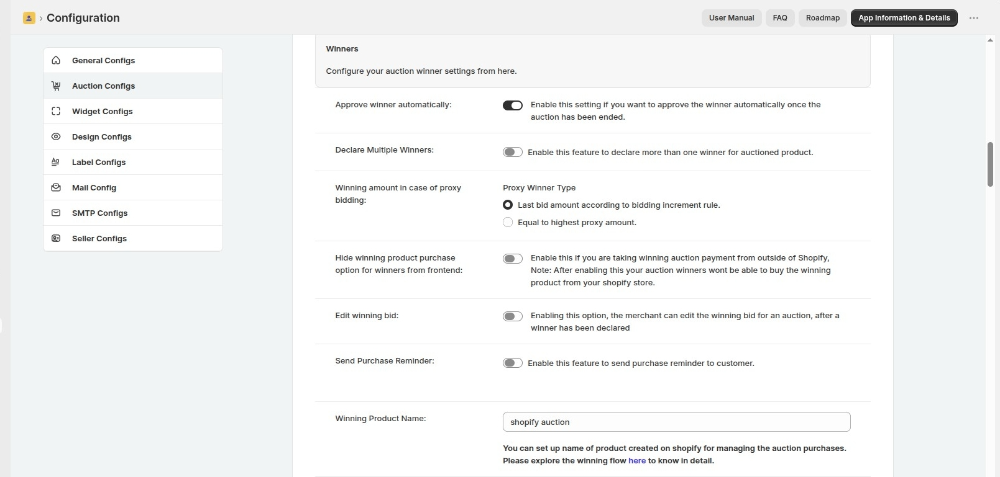
Declare Multiple Winners: Enable this feature to declare more than one winner for auctioned product.
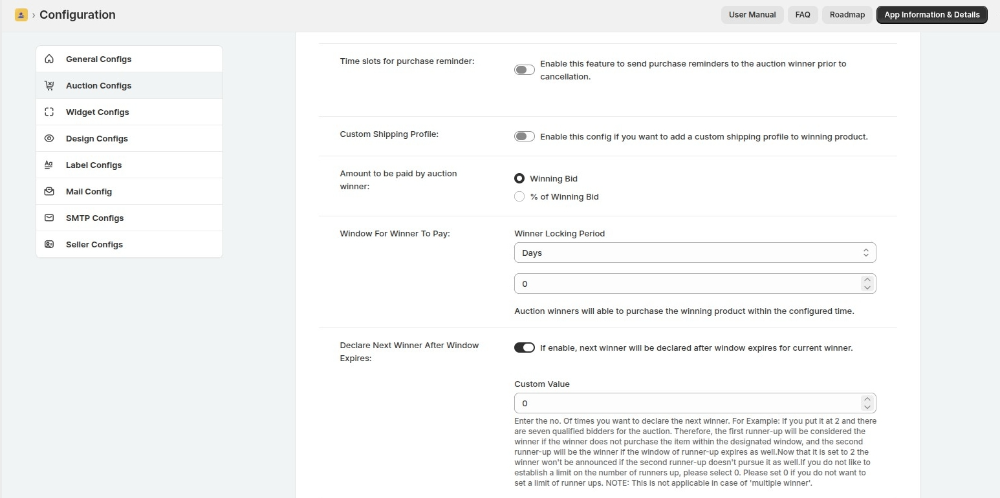
Window For Winner To Pay: Auction winners will able to purchase the winning product within the configured time.
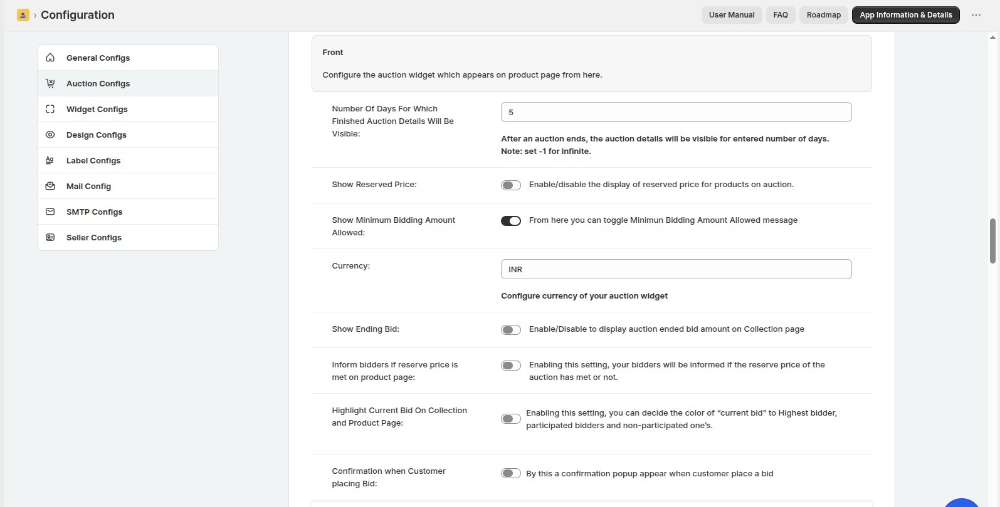
Number Of Days For Which Finished Auction Details Will Be Visible: After an auction ends, the auction details will be visible for entered number of days.
Note: Set
-1for infinite.
Show Minimum Bidding Amount Allowed: From here you can toggle Minimum Bidding Amount Allowed message.
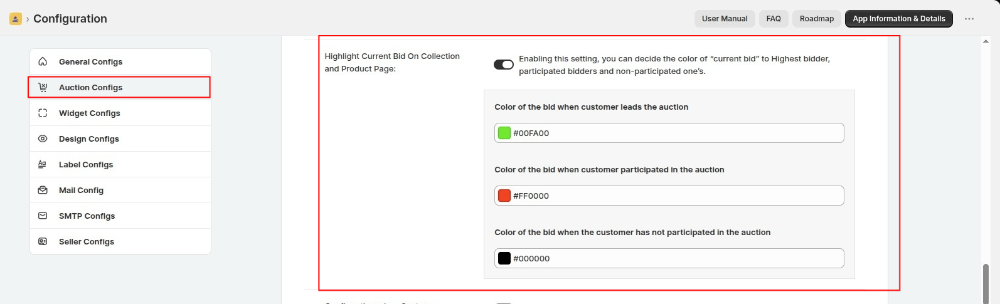
Highlight Current Bid On Collection and Product Page: Enabling this setting, you can decide the color of “current bid” to Highest bidder, participated bidders and non-participated ones.
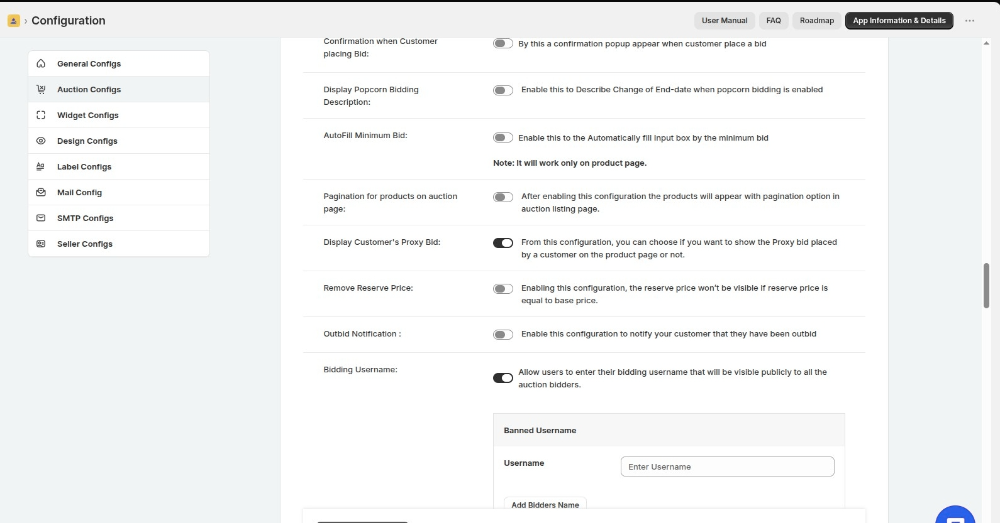
Bidding Username: Allow users to enter their bidding username that will be visible publicly to all the auction bidders.
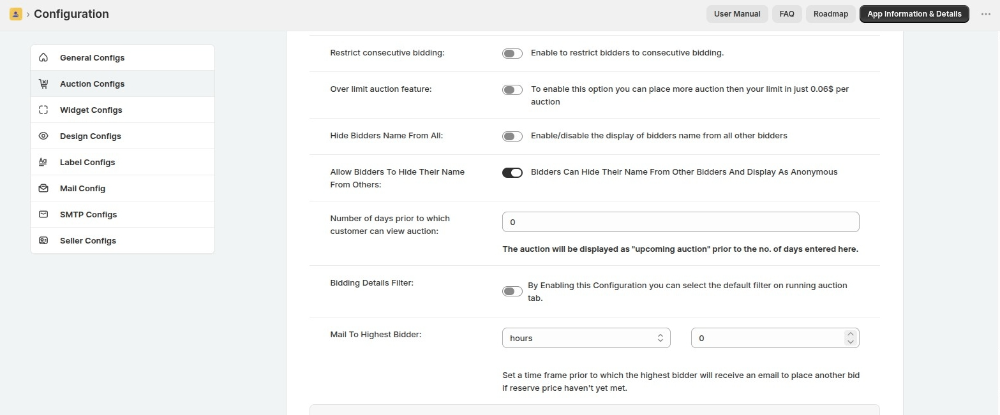
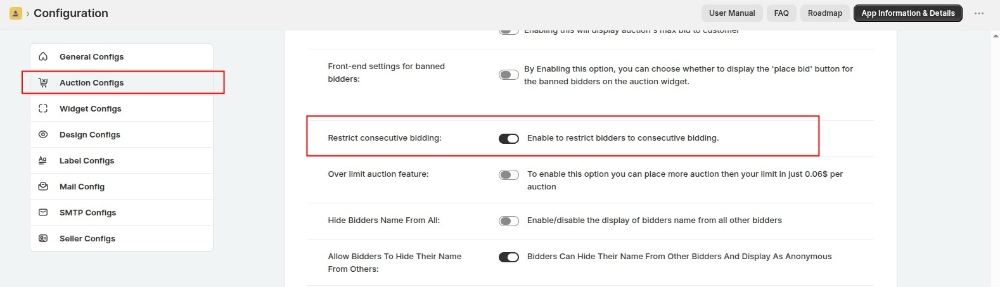
Restrict consecutive bidding: Enable to restrict bidders to consecutive bidding.
Allow Bidders To Hide Their Name From Others: Bidders can hide their name from other bidders and display as Anonymous.
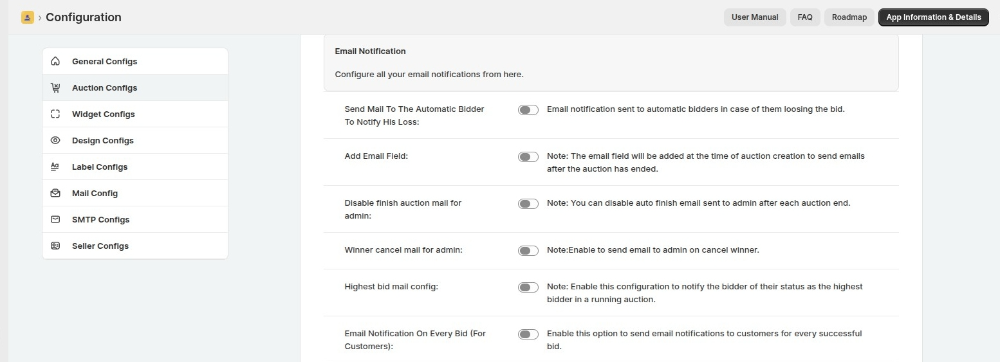
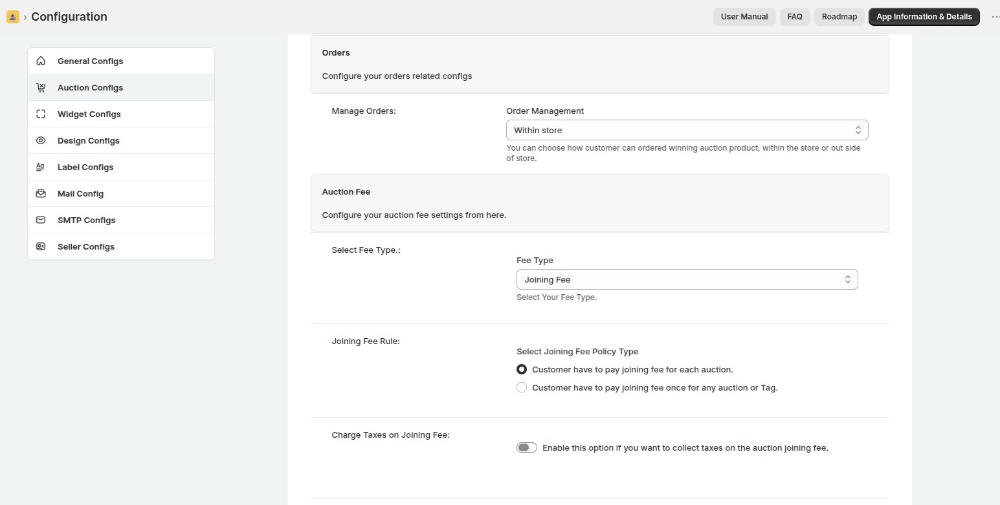
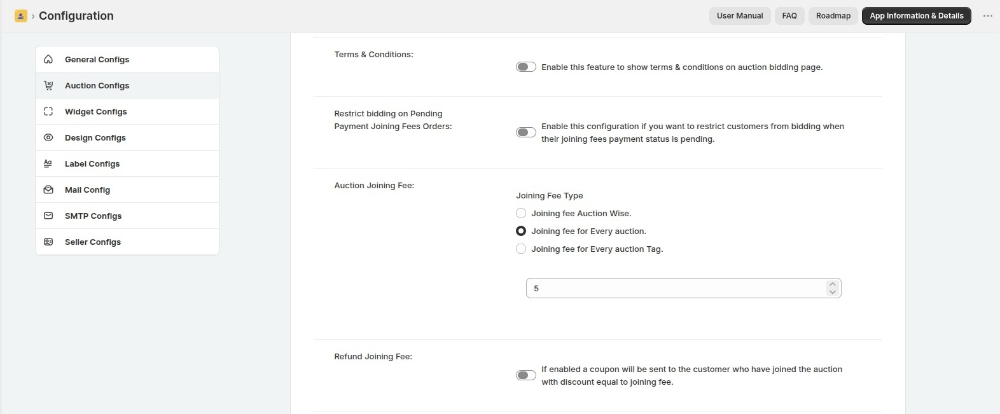
Joining Fee Rule: Select Joining Fee Policy Type.
- A - Customer have to pay joining fee for each auction.
- B - Customer have to pay joining fee once for any auction or Tag.
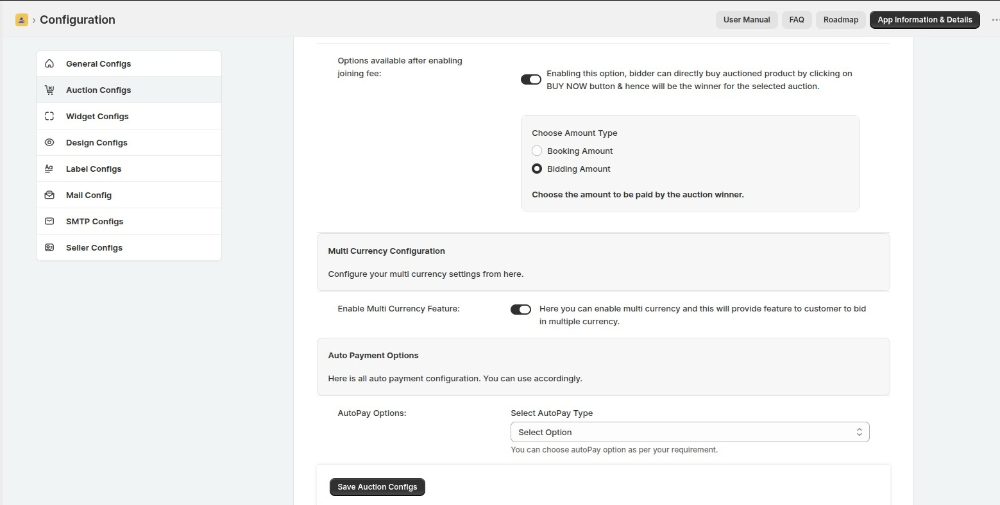
Enable Multi Currency Feature: Here you can enable multi currency and this will provide feature to customer to bid in multiple currency.
Restrict Consecutive Bidding
We have introduced a new feature that allows the Admin to restrict consecutive bidding in auctions. Another bidder must outbid a bidder before they can place a new bid.
Bidders cannot place consecutive bids unless another bidder outbids them first.
For this kindly go to the Product Auction Admin panel >> Configuration >> Auction Configuration.
Highlight Current Bid On Collection & Product Page
You can now configure the color to highlight the current bid on your auction products.
You can have different colors for the bids on the collection & product page for the customer who leads the auction, participated in the auction, or has not yet participated in the auction.
To configure this, you need to visit the Auction Configuration menu of the admin panel >> Configure the color of your choice >> Save the settings.
This is how it appears on the collection page of your store:

This is how it appears on the product page of your store:

Confirmation Pop-up while placing Bid
You can now have the option to show a confirmation pop-up on the product page when a customer places a bid. Just visit the Auction Configuration and enable this option.

This is how the confirmation pop-up appears once a bid is placed.

Amount To Be Paid By The Auction Winner
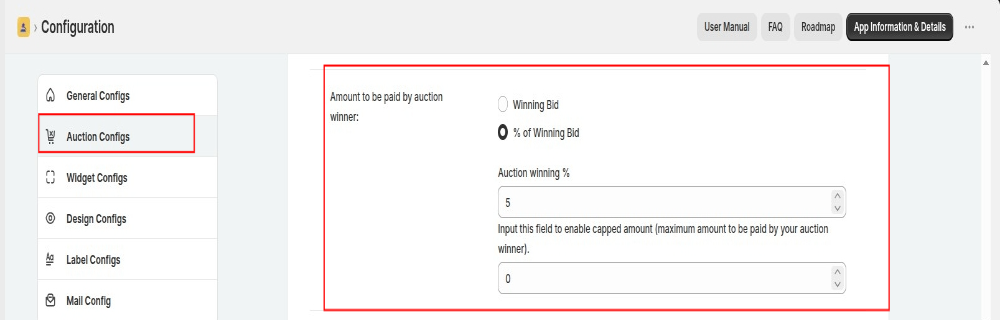
Once the bidder wins the auction, it depends on admin how he/she wants the bidder to pay the winning amount.
The winner will either pay the auction winning amount or some percentage of the winning amount set by the admin.
If the admin selects the % of winning bid, he/she needs to enter the percentage amount. Admin can also enter the Capped amount if he/she wants the auction winner to pay the maximum amount.
“Capped Amount is the maximum amount to be paid by the auction winner”.
NOTE:
In the case of % of winning bid:
- If Entered Percentage of (Auction winning amount) > Capped Amount, then the Auction winner will pay the Capped Amount.
- If Entered Percentage of (Auction winning amount) < Capped Amount, then the Auction winner will pay the entered Percentage of the winning amount.
Hide Buy Now Button for Purchasing Auction Products
In case you want to charge the winning amount outside the app, you can hide the "Buy Now" button for purchasing auction products of the winners.
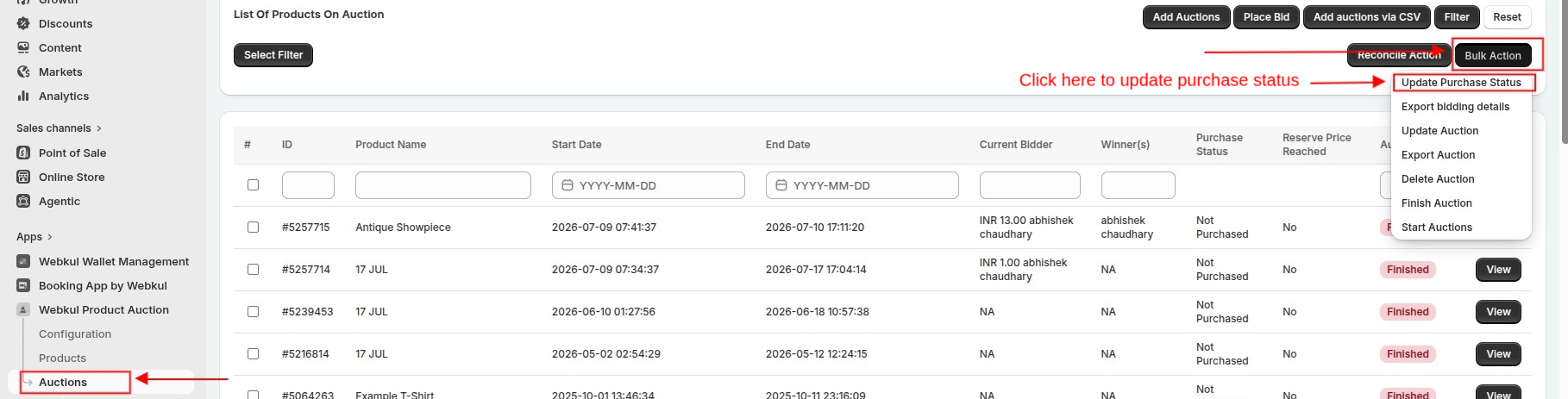
Then, you can manually update the purchase status in the app.
To hide the option, you need to visit the Auction Configuration and enable the tab as shown in the below screenshot.
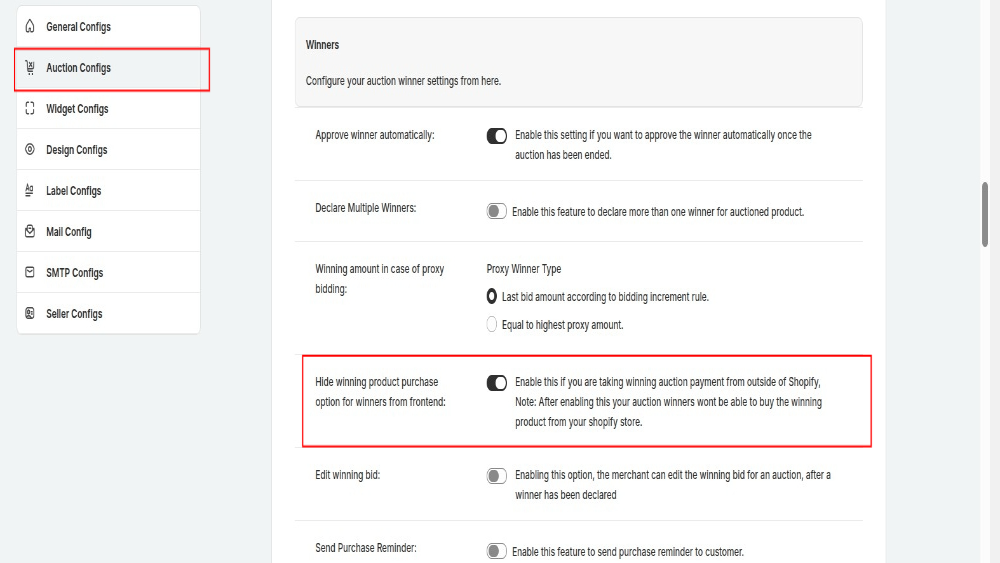
This way, the system does not display the ‘Buy Now’ button to winners. However, you can update the purchase status in the app once you confirm the payment outside the app.
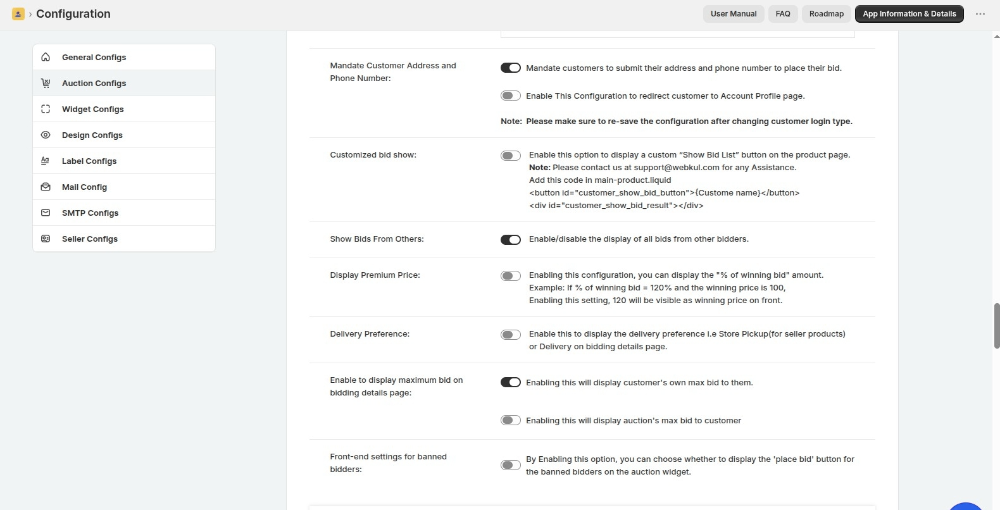
Mandate Customer Address and Phone Number
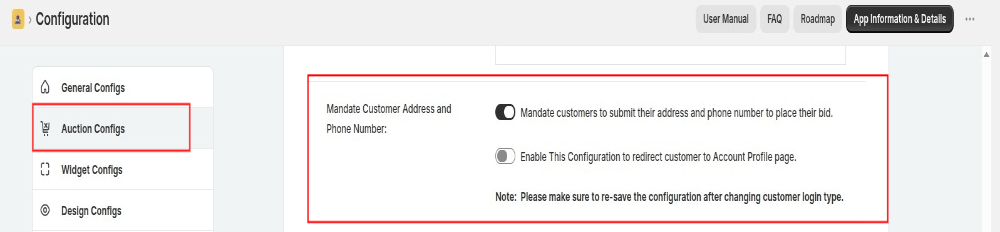
When you enable the ‘Mandate Customer Address and Phone Number’ configuration, customers will be required to provide their address and phone number before participating in the auction.
Default Bid Rule
Now, the admin can set the default bid rules for the auctioned products of his store.
From this, you can maintain the gap between the bidding amount.
If no specific rule is defined for a particular bid, the nearest applicable increment rule will be applied.
For this, visit Product Auction App > Configuration > Auction Configuration.
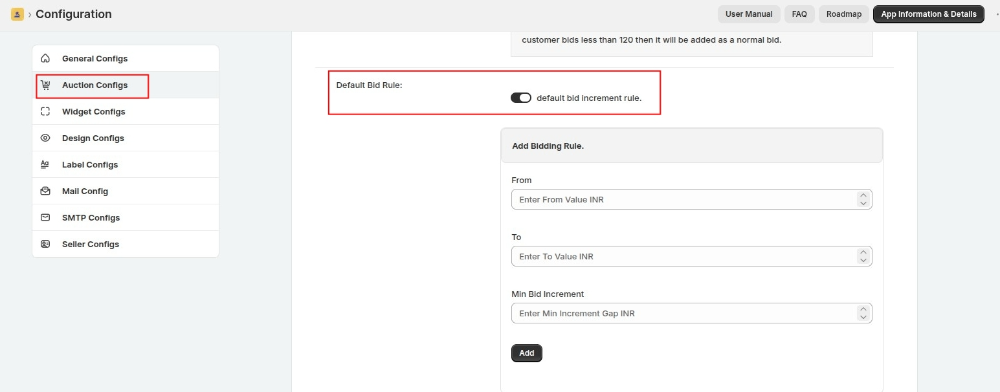
The added bid rules will be by default added to all your future auction. Moreover, you can alter the by-default bid rule for any individual auction while adding/editing it.
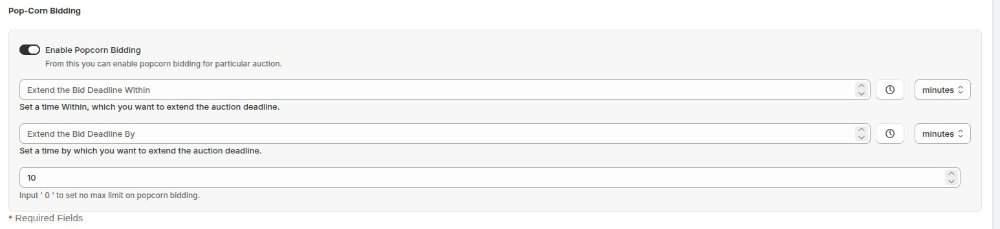
Popcorn Bidding
Popcorn Bidding, also known as Dynamic Bidding, is a way of giving the bidders who were outbid an opportunity to rebid.
Enable this option, enter the time within which you want to extend the auction deadline.
Enter the time by which you want to extend the auction deadline and lastly, enter the number of times this whole popcorn bidding scenario can reoccur.
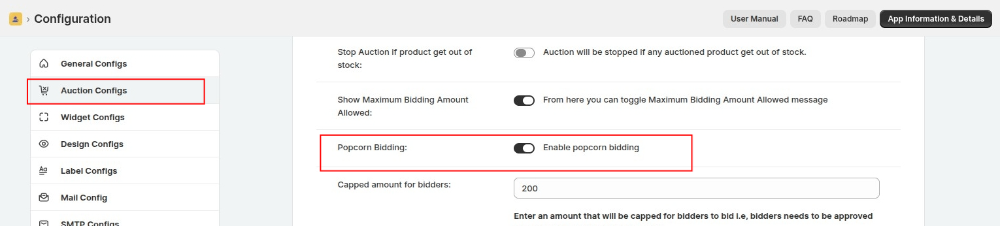
Note: To make the popcorn bidding feature by default enabled for all the future auctions, you can enable the popcorn bidding feature from the app’s Configuration > Auction Configuration Section.
Real-time Bid Update
The product auction app is now upgraded with the feature of real-time bid update.
So, from now onwards, once a bidder places a bid for a product, the bids will get updated on the auction window page for all the other bidders who are live on auction.
No need to refresh the page again & again to update the last bid placed for any item.
Allow Customers To Place Normal & Proxy Bid With A Single Button
You can now allow customers to place a normal and a proxy bid using a single button for an auction product.
If the bid amount is greater than Bid Price + 2(Increment)* then, it will be considered as a proxy bid.
Let's take an example:
If the current bid amount is 100 and the minimum increment allowed is 10, then if the customer places the bid for 120 [Bid Price + 2*Increment] or more then it will be considered as a proxy bid for the auction, but in case the customer bids less than 120 then it will be added as a normal bid.
You just need to enable the option from the Auction Configuration menu of the app.
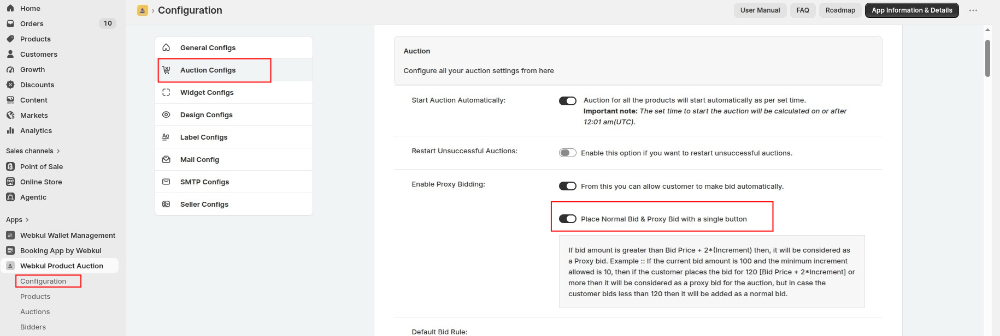
Enabling this option will let you choose whether you want to enable this for all the running & upcoming auctions OR only for newly created auctions products.
Place Bid on Behalf of Customers
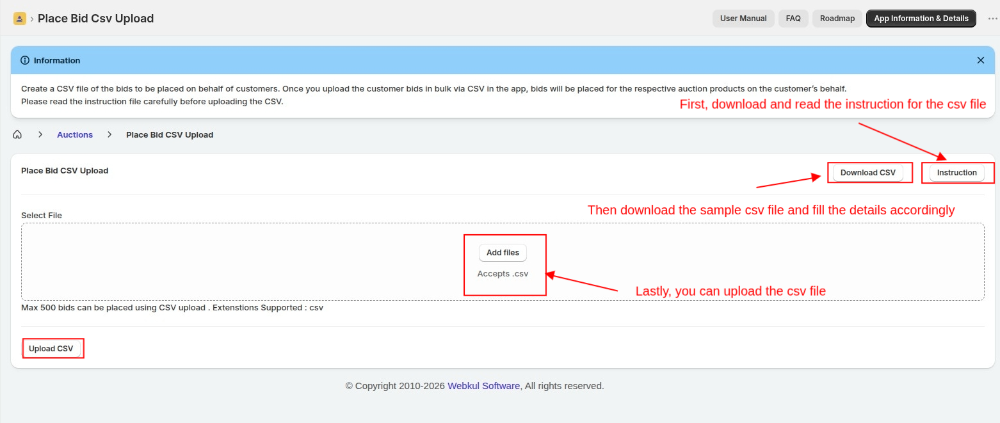
Now, the admin can place bids on behalf of customers using a CSV file.
For this, go to the AUCTIONS section >> click on Place bid.
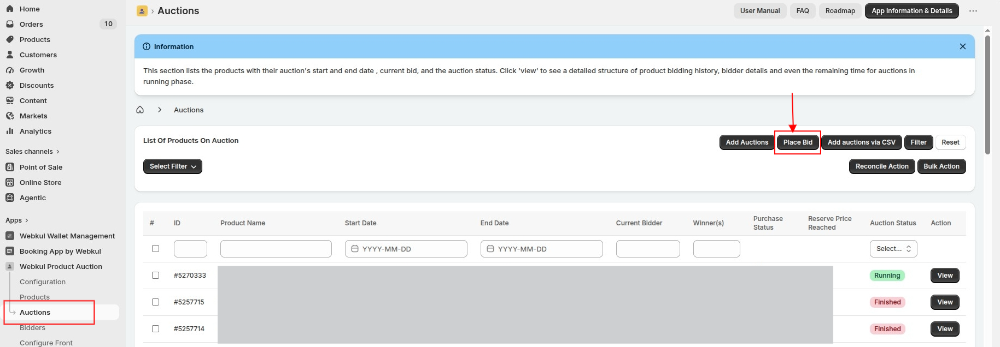
Now, you will have the option to upload a CSV file to place a bid on behalf of the customer and you will find an option to download a sample CSV file.
Go through the instructions for the CSV file and then upload the CSV file to place a bid.
Over Limit Auction Feature
The Product Auction plan includes support for up to 500 live auctions running simultaneously.
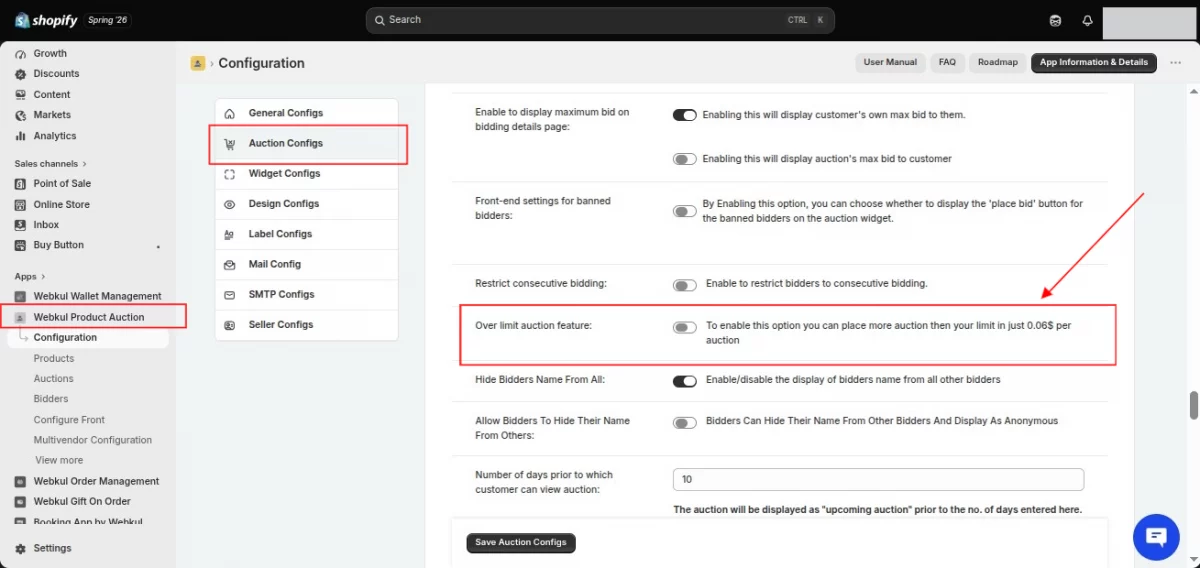
If your business requires more than 500 live auctions at the same time, you can easily extend this limit by enabling the Over Limit Auction feature available in the Product Auction app.
Once this feature is enabled, you can create and run more than 500 live auctions on your store.
For every auction beyond the included 500 live auction limit, an additional charge of $0.06 USD per auction will apply.
For example, if you want to run 1,000 live auctions simultaneously, simply enable the Over Limit Auction feature.
The first 500 live auctions are covered under your plan, while the remaining 500 auctions will be billed at $0.06 USD per auction.
How to Enable the Over Limit Auction Feature
To enable this feature, navigate to:
Product Auction Dashboard → Configuration → Auction Configuration → Enable "Over Limit Auction feature"
Reconcile Order
When an auction ends, the system declares the highest bidder as the winner.
Subsequently, if the winning bidder successfully completes the purchase, the Product Auction app updates the status to ‘Purchased’ accordingly.
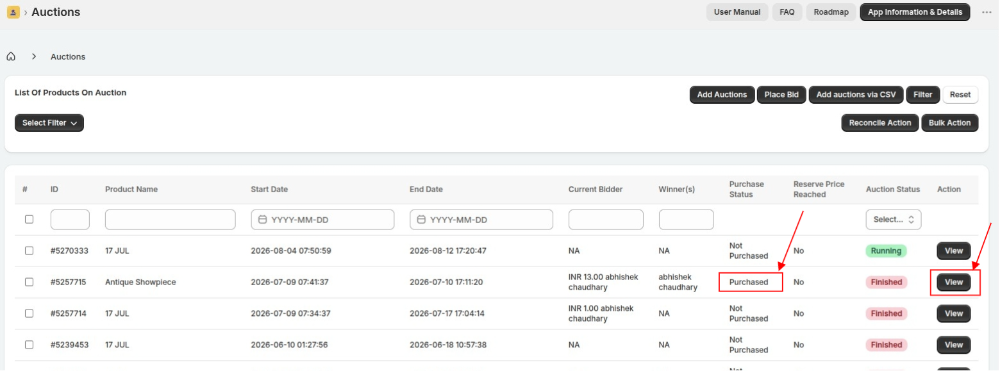
However, in some cases, even though the product status appears as 'Purchased' in the app, the 'View' button—which links to the order page—may not be visible in the Winner Details section.
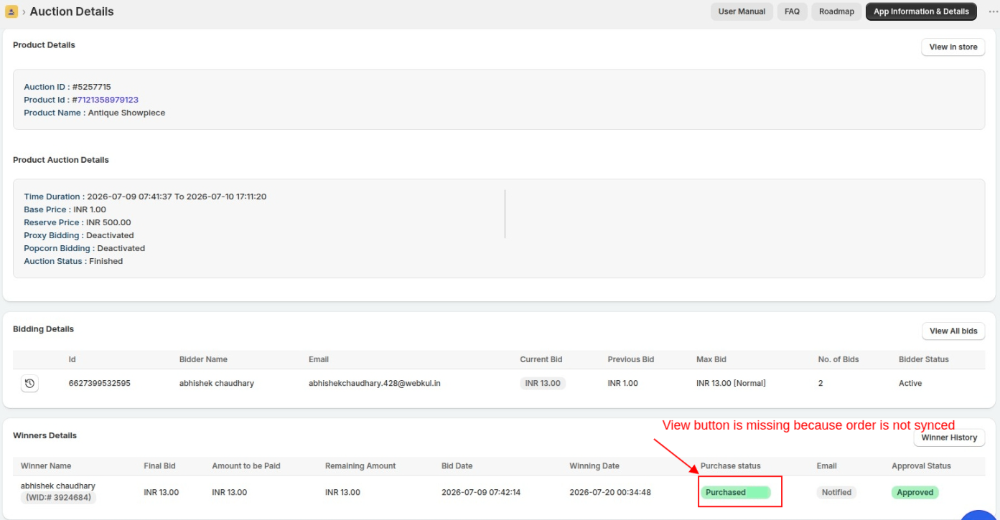
If the ‘View’ button is missing, the system has recorded the product as purchased by the winner but has not yet synced the order with the customer’s account or the store.
Therefore, the order details may not be available in the respective account or store.
This may have occurred either because the customer used a different email during checkout, or possibly due to a sync failure resulting from some other issue.
As a result, the 'Purchased' status will not appear on the winner's account, and the 'Buy Now' option will still be visible.
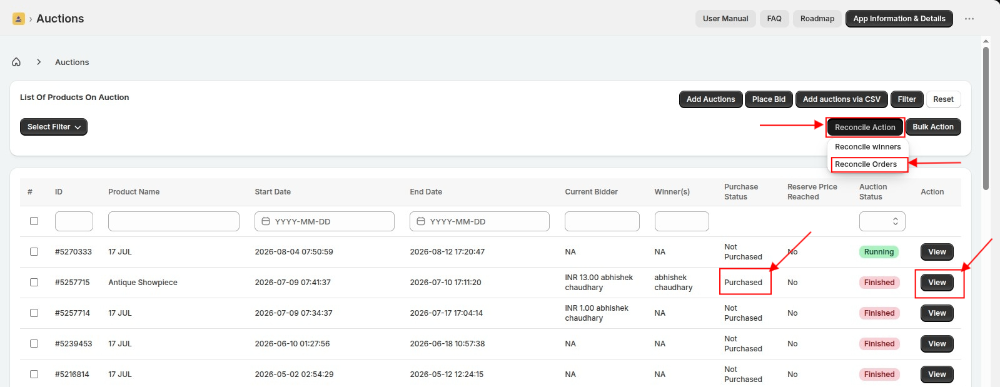
To resolve this issue, we have provided a feature called ‘Reconcile Order’ in the Product Auction app, which helps manually sync the order.
You can access this feature by navigating to:
Product Auction App > Auctions > Reconcile Action > Reconcile Orders
How it works
When you click on 'Reconcile Order', a pop-up will appear where you can select the desired date range.
After clicking ‘Proceed’, the system attempts to reconcile the order if the winning bidder purchased the product.
Once reconciliation is successful:
- The product status will be marked as 'Purchased'.
- A 'View' button will appear in the Winner Details section.
- Clicking on this button will redirect you to the corresponding order for the product.
- The order will also appear as ‘Purchased’ on the customer’s account page.
In addition, you will receive a confirmation email with a CSV file attached.
This file will contain the details of:
- All reconciled orders, including the auction ID.
- The email address of the customer assigned to the order.
- The email address used during checkout.
This process ensures proper alignment of all auction order records and effectively resolves any discrepancies between auction wins and order creation.
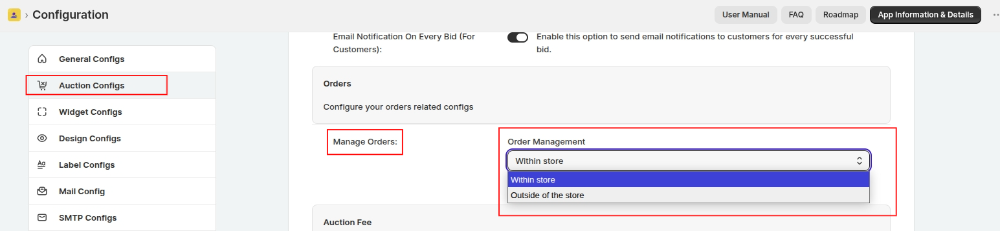
Manage Orders
If you want to manage orders either within the store or outside the store, we provide a Manage Orders configuration in the Product Auction app, through which you can select your preferred option.
Widget Configuration
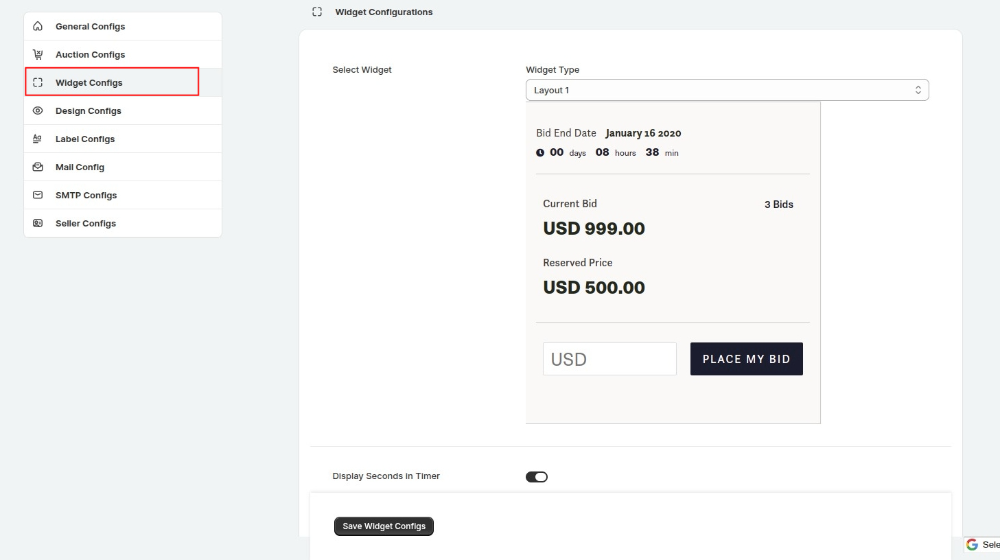
You can configure the format of the "End Date" of the auctions on your products.
For this, you just need to visit the Configuration > Widget Configuration.
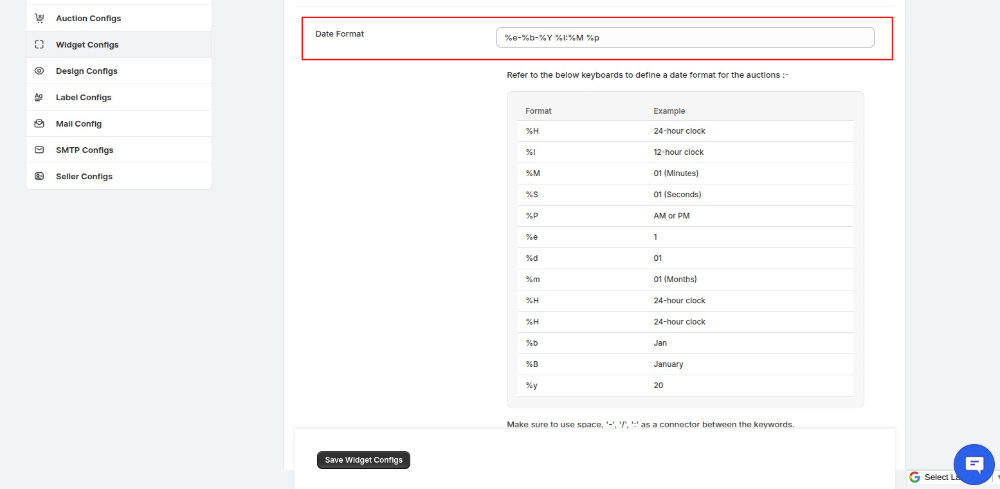
Configure the date format and click the Save button.
That's all.
Design Configuration
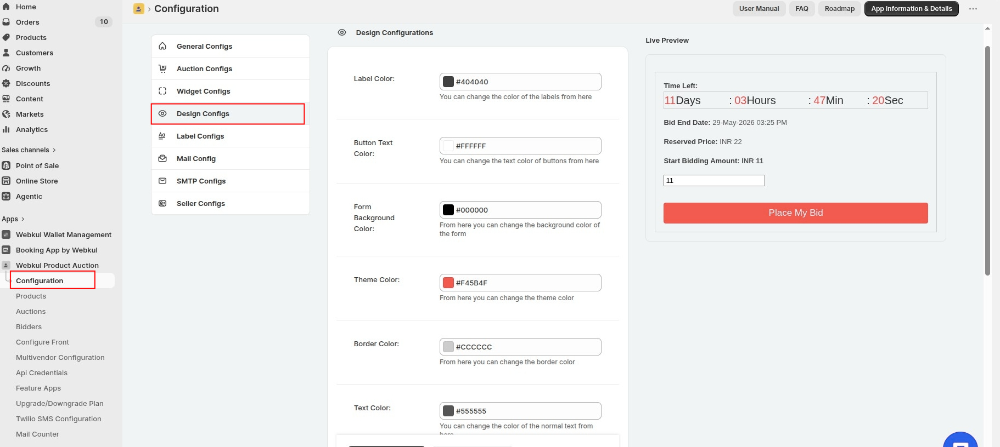
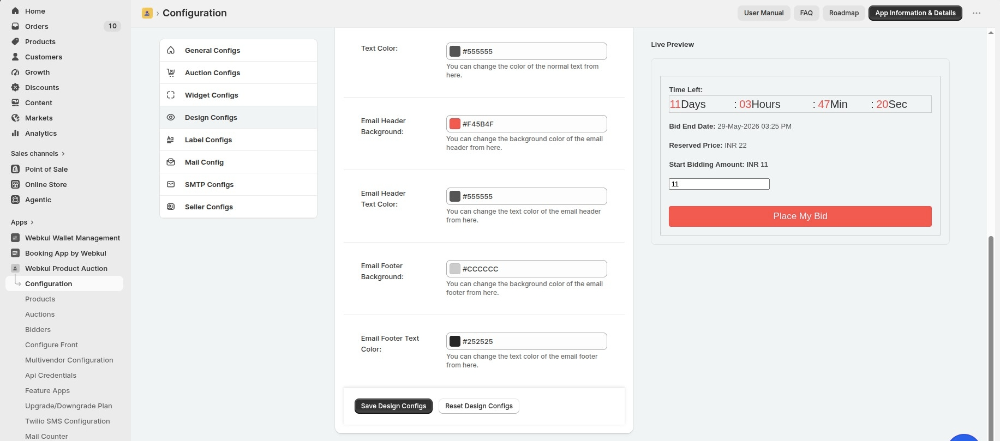
Change or reset the look of the front end and design by changing the color of the background, themes, button text, label, and much more.
Label Configuration
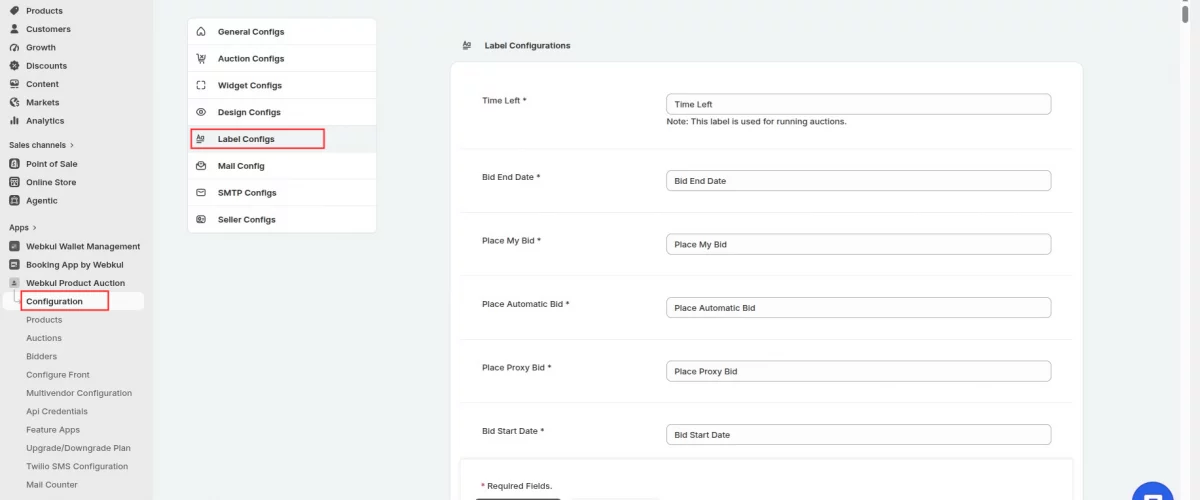
Edit the labels of buttons on the front and rename them as per your requirements such as changing the label of time end, bid end date, place my bid and much more.
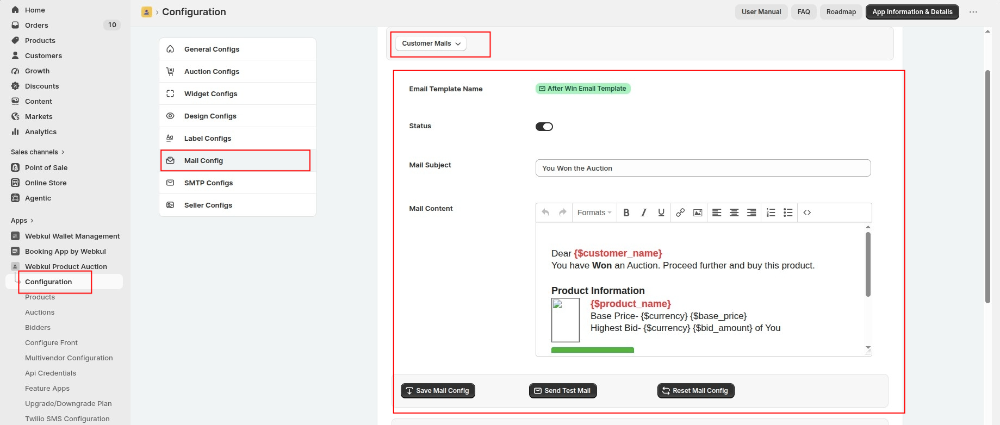
Mail Configuration
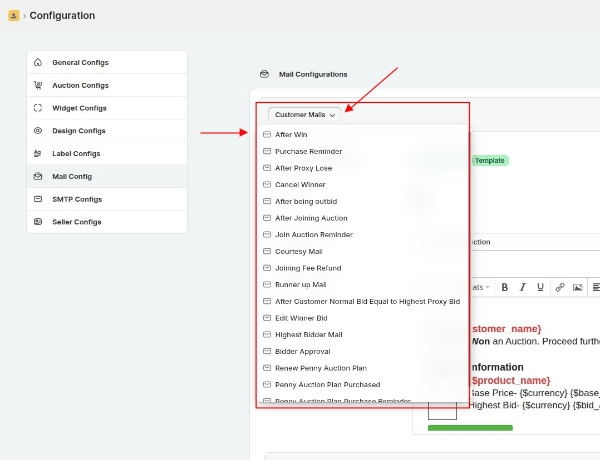
Configure the after win, purchase reminder, after proxy loses mail content such as mail subject and content. You can also disable these different event’s email status.