

Appearance
Upgraded Features
The Product Auction App includes several upgraded features that provide additional flexibility for managing auctions, bidders, payments, notifications, and storefront functionality.
Product Subscription for Auto Pay
We’re excited to introduce a new feature app within our Auction App: Product Subscription for Auto Pay.
With this feature, the auto-payment is automatically deducted once a customer wins an auction.
In this auto pay feature the user needs to validate through a free product by purchasing the product with 0 amount.
Note: This feature will only be available in Executive and Pro Plan of Auction App.
How It Works
Purchase the Webkul Subscription App:
To use this feature, you first need to install and purchase the Webkul Product Subscription App.
Enable the Feature App:
Once the subscription app is set up, enable the “Product Subscription for Auto Pay” feature from your Auction App.
To enable this click on Three dots >> Feature app >> Enable the Product Subscription for Auto Pay.

Configuration:
In the configuration settings, select “Auto Pay with Product Subscription” under the Auto Payment options.

Check if the auto payment auction product is created or not:
The app will create a product named “Autopay Auction”. Make sure it is available in the Sales Channel and not in draft mode.
If the product is not created automatically, contact us.
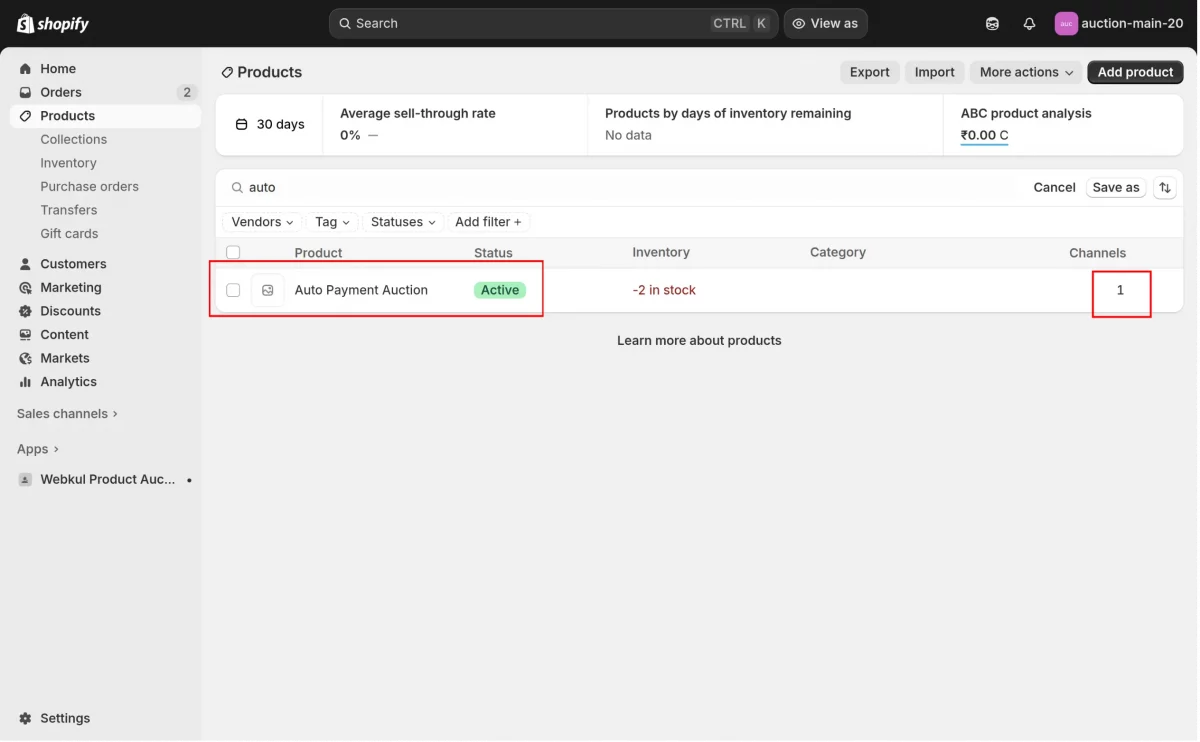
Front-End Flow
When a customer places a bid, a pop-up will appear prompting them to validate through a free (0-amount) product. This saves the card details or payment details of the customer.
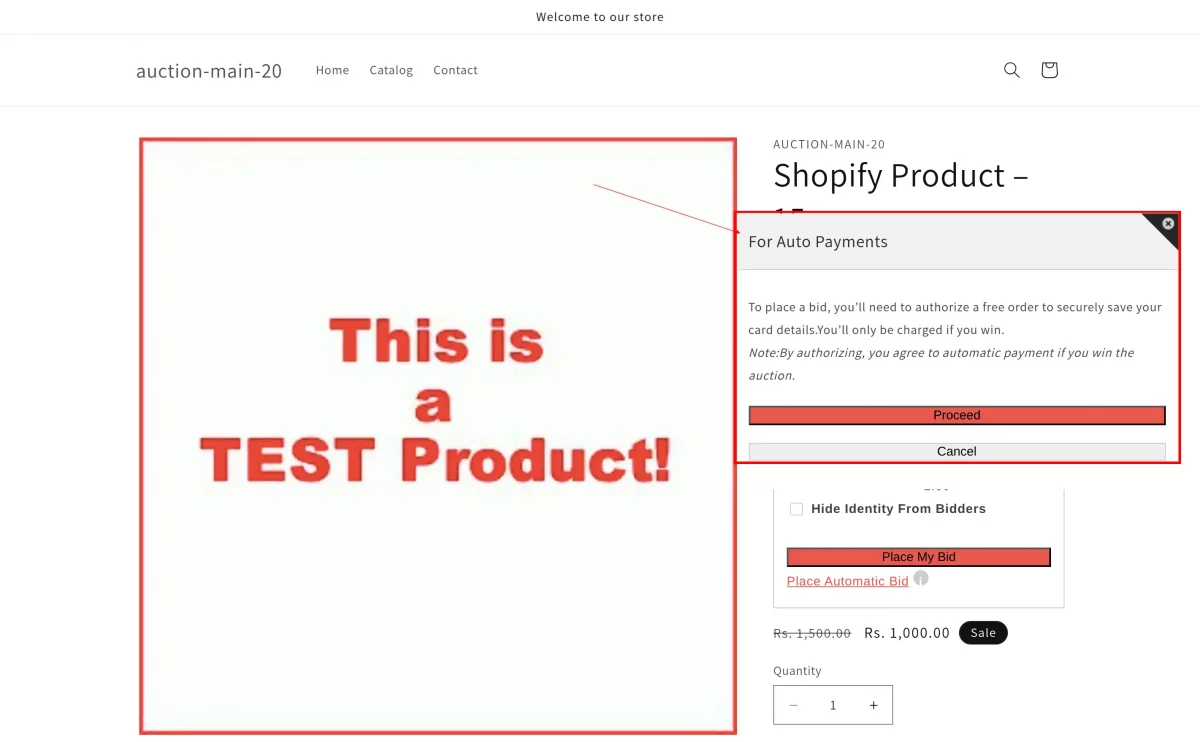
After successful validation, the customer can place bids as usual.
Once the auction ends and a winner is declared, the payment will be processed automatically through the subscription setup.
The customer will authorize their payment method by purchasing a free product one time only.
This step securely saves their payment details. Once the auction ends, if the customer wins, the payment will be automatically deducted from the saved payment method, and the purchase status will be updated within the auction automatically.

Note: Currently, this feature does not work with Seller Auctions/Marketplace.
It will also not function when the winner is canceled and redeclared. Support for these cases will be added in a future update.
Reconcile Winner
The Reconcile Winner feature helps admins identify auctions where winners have not been declared yet.
Admin will be able to declare all those winners in just a click by using this feature.
Note:
- The admin can only declare the winner of the past 90 days (3 months).
- This feature only works in the case of Approve Winner Automatically.
Configuration of Reconcile Winner
Firstly, the admin needs to enable Approve Winner Automatically Once The Bid Is Over from:
Configuration → Auction Config → Approve Winner Automatically Once The Bid Is Over

Once the admin enables the configuration, a tab will be visible on the auctions tab page.

Admin can apply a date-wise filter to get the previous winner list who has not been declared yet.
Click on Proceed to view the winner list.

The auction IDs will be displayed where the winner has not been declared.

Send Purchase Reminder
The admin can send a reminder to the winner to complete the purchase and configure the number of days for sending the reminder.
For example, if the admin selects 1 in days, the reminder will be sent after 1 day of the auction ending. If the admin selects 2, the reminder will be sent after 2 days of the auction ending.
Purchase Reminder Time Slots
With this feature, the admin can set time intervals at which purchase reminders will be sent to auction winners before the winner is canceled.
For example, you can choose to send reminders at 1, 2, and 5 hours before winner cancellation.
Note: Admin can add a maximum of 5 time interval slots for purchase reminders.
Admin needs to follow the path:
Configuration → Auction Configuration → Time slots for Purchase Reminder → Enable → Set the hour/hours → Add → Save

Configuration of Send Purchase Reminder
Admin needs to follow the path:
Configuration → Auction Config → Send Purchase Reminder

Enable Bootstrap Grids
The app provides an option to enable or disable the Bootstrap Grid according to the theme requirements.
From the Configuration section, you can enable or disable this feature.
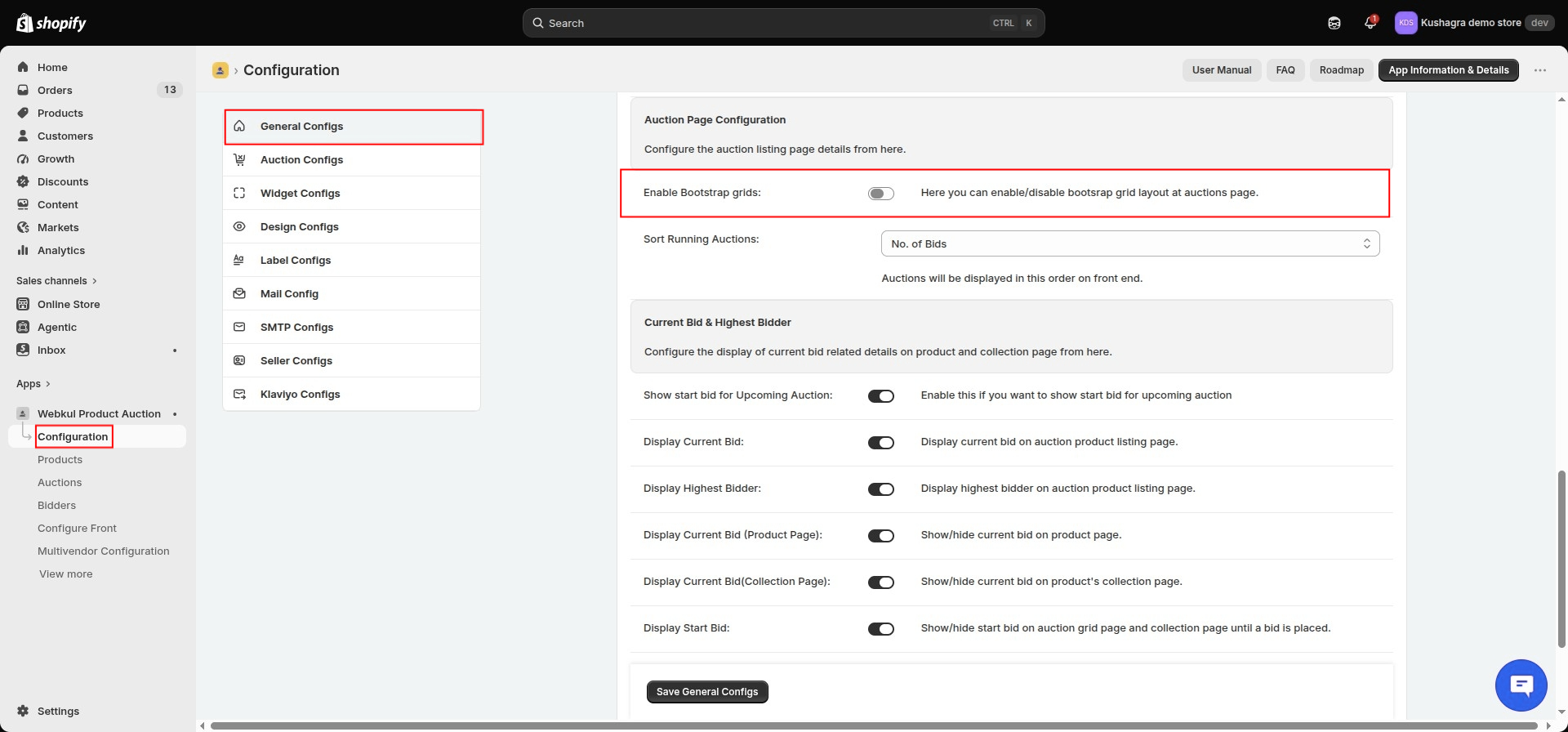
Enable Twilio SMS Gateway
This section allows you to configure Twilio settings, including SMS contents.
The Twilio Gateway can be integrated with the app to send predefined messages to customers/bidders.
You must have your own Twilio account. The messages and charges will be managed according to Twilio charges.
First, enable the Twilio option from the configuration.
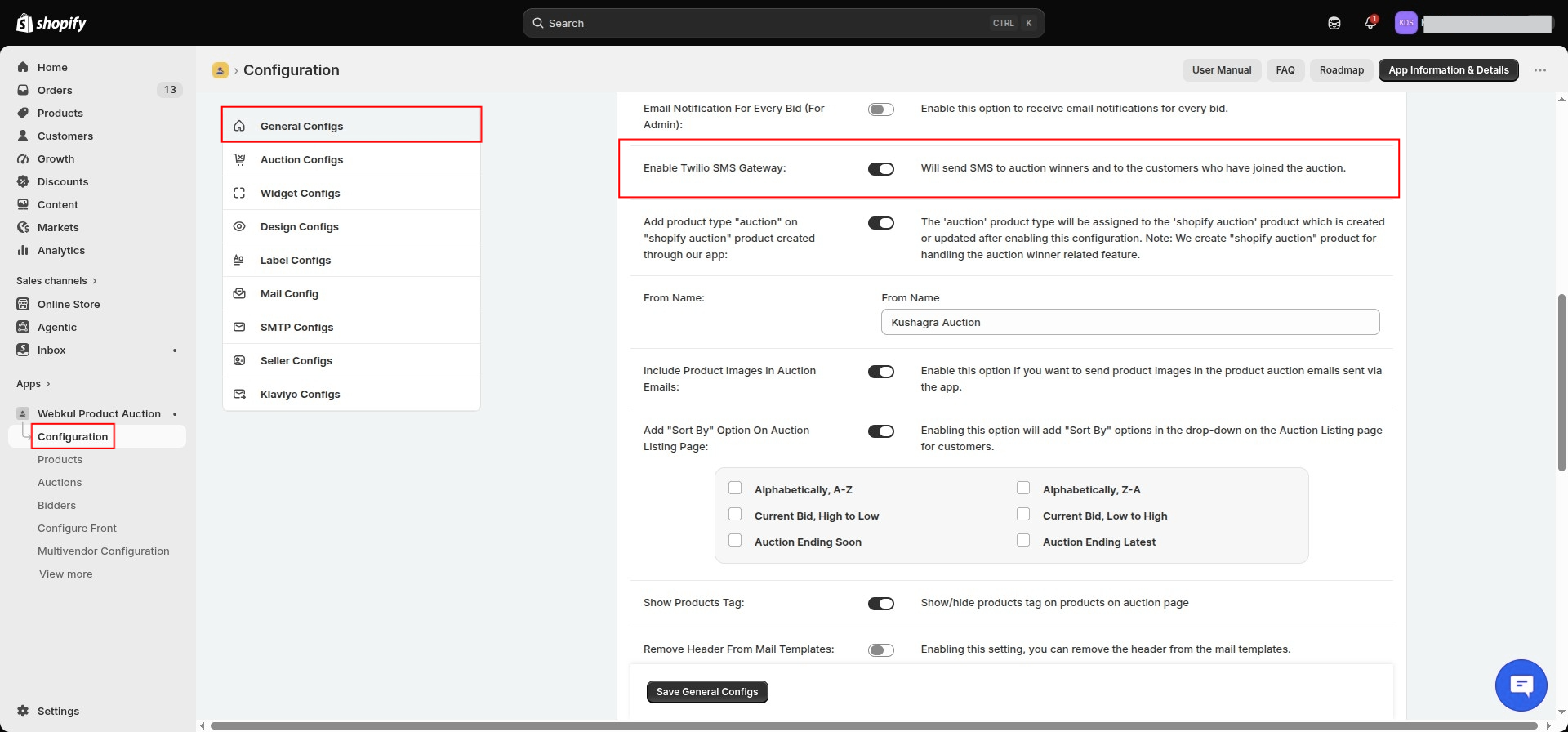
Once enabled, visit the Twilio SMS Gateway section and configure Twilio by entering the API KEY.
Note: The API key can be obtained from your own Twilio account.

Front-End Auction Flow
Auctions are displayed in two different tabs:
- Running Auctions
- Upcoming Auctions

To participate in an auction, the customer can select the auction and start bidding.
Include Product Images in Auction Emails
You can send product images in the product auction emails sent via the app.
To enable this feature, visit:
Product Auction App → Configurations → General Configuration

Edit Bid
The merchant can edit a bid when a winner has been manually declared.

Edit/Delete Current Proxy Bid
You can edit or delete the current proxy bid applied to an auction.

Sorting Feature on Auction Listing Page
The Sorting feature allows customers to sort products listed on the auction page.
To enable this feature, visit:
App Admin Panel → General Configuration
Enable the required sorting options.

Once enabled, customers can sort auctions by:
- Alphabet
- Current Bid
- Auction Ending Soon
- Latest

Pagination for Products Listed on the Auction Page
The pagination option allows you to control the appearance of products listed on the auction page.
To enable it, visit:
App Admin Panel → Auction Configuration
Enable Pagination for products on auction page and save the configuration.

After enabling the configuration, products will be listed using pagination.
For example, 12 products can be listed on every page. When pagination is disabled, products will be displayed using infinite scroll.

Edit Winning Bid
The merchant can modify the winning bid after the auction closes but before the winner purchases the item.
To enable this feature, visit:
App Admin Panel → Auction Configuration → Edit winning bid → Save
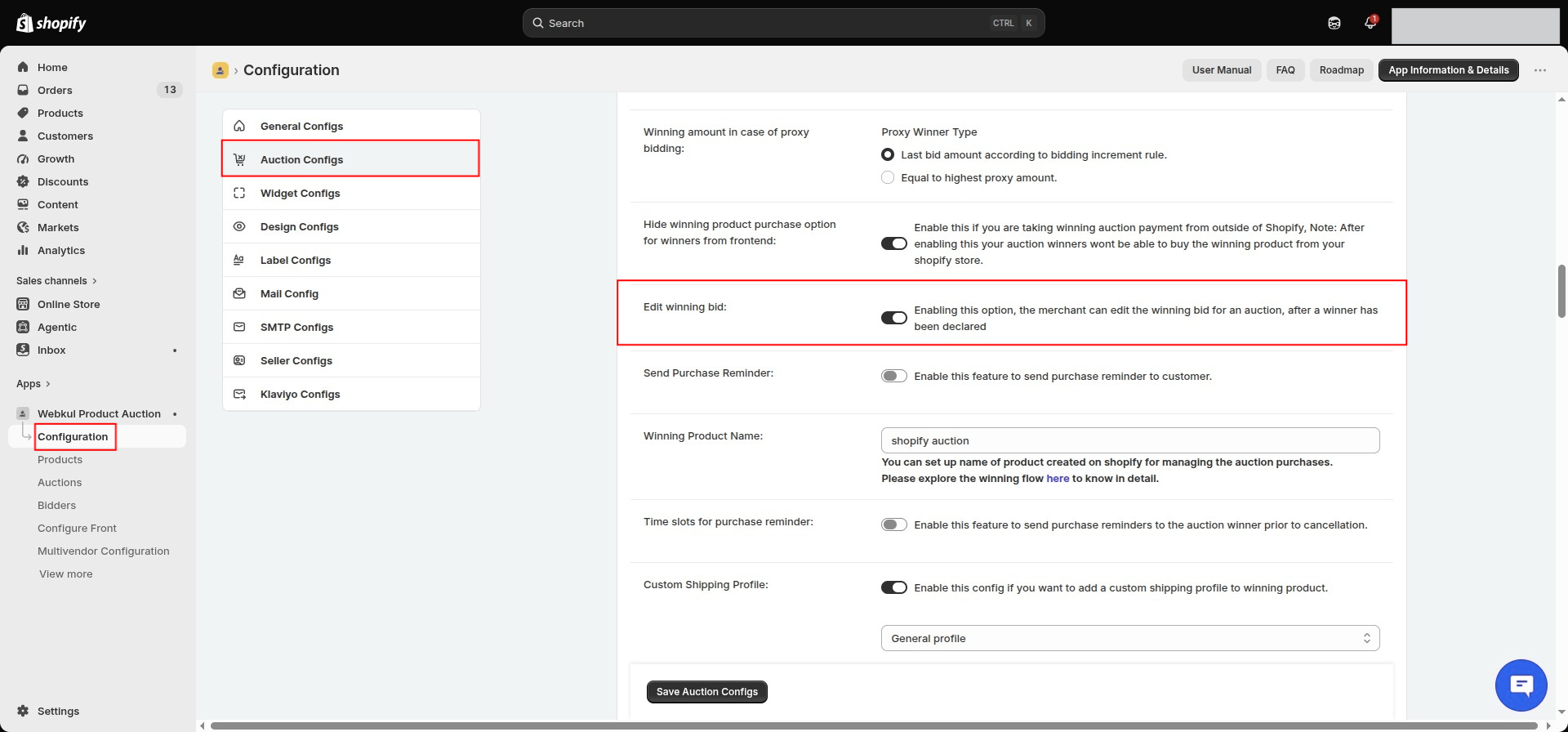
After enabling the configuration, the admin can edit the winning bid from:
Auction App → Auctions → View

Click the Edit button. A window will appear where you can enter the updated bid and a message for the customer.
Note: You can only enter a bid greater than the existing winning bid.

After submission, the new bid will be updated as the final bid.
You can also view the history of edited bids by clicking the View button.

Send Notification to Highest Bidder When Reserve Price Is Not Met
This feature allows the admin to send an email notification to the highest bidder if the reserve price has not been met and the auction is close to ending.
The merchant can set a specific time frame for sending the email notification before the auction ends. This can help reduce the number of failed auctions.
Set the Time Frame
Merchants can configure the time frame before which the highest bidder will receive an email.
Navigate to:
Configuration → Auction Configuration → Mail To Higher Bidder

Configure Highest Bidder Mail
Admin can modify the content of the email sent to the highest bidder.
Note: Do not change the variables, as every variable retrieves its corresponding values.
To modify the mail template, navigate to:
Configuration → Mail Configuration → Highest Bidder Mail template

Bidding Username
The admin can allow bidders to add a username while bidding on an auction product.
Navigate to:
Configuration → Auction Configuration → Bidding Username

An additional field will be added to the auction product where bidders can enter their usernames.
Bidders can also update their username from their respective account pages.

Banned Username Keywords
Admin can add banned keywords that bidders cannot use.
If a bidder tries to use a prohibited keyword, an error message will be displayed asking them to use another username.

Capped Amount for Bidders
The admin can set a capped amount for bidders, which limits the maximum bid a bidder can place.
Bidders need to be approved if they wish to bid above this capped amount.
To configure the capped amount, navigate to:
App Admin Panel → Auction Configuration → Capped amount for Bidders

Note: The feature will not be functional if 0 is set as the capped amount.
Storefront Flow
If the admin sets the capped amount to Rs. 200, the bidder cannot place a bid greater than Rs. 200.
If the bidder tries to place a higher bid, a popup with an alert notification will be displayed.

Until the admin approves the bidder, the bidder will not be able to place a bid above the capped amount.

The admin will receive an email regarding the bidder attempting to bid above the capped amount.

The admin can navigate to:
Auction App → Bidders
to approve or reject the bidder.

Once approved, the bidder will be able to place a bid above the capped amount.
The bidder will also receive a bidder approval email.

The admin can edit the email template from:
Auction App → Configuration → Mail Configuration

Start Missed Pending Auctions
The Start Missed Pending Auctions feature allows the admin to start auctions whose scheduled start time has already passed.
If an auction does not start after its scheduled time or multiple auctions have past start dates, the admin can use this option to start them.
Navigate to:
Product Auction App → Auction
Select the missed pending auctions and click:
Bulk Action → Start Auctions

Enable Multi Language
The Enable Multi Language feature allows the admin to change the language of the Auction app.

Configuration
Navigate to:
Auction App → Configuration Menu → Auction Configurations
Enable the Enable Multi Language option.

Once activated, a Select Language option will appear at the bottom right corner, where you can choose the language for the Auction app.